> ## Documentation Index
> Fetch the complete documentation index at: https://openops-ecb4f397-mintlify-external-database-workflow-output.mintlify.site/llms.txt
> Use this file to discover all available pages before exploring further.
# Organization Template Catalog
> How to create your company's own workflow templates
export const NarrowImage = ({src, alt, widthPercent}) => {
const className = `narrow-image-${useId().replace(/:/g, '-')}`;
const widthRule = widthPercent ? `width: ${widthPercent}%;` : '';
return <>
 ;
};
**Organization template catalog** is an Enterprise edition feature. See [pricing](https://www.openops.com/pricing/) for details.
Community and Professional editions include a [template catalog](/workflow-management/workflow-templates/) curated by the OpenOps team. The Enterprise edition lets you publish your own templates in a private section of the template catalog called **My Organization Templates**.
;
};
**Organization template catalog** is an Enterprise edition feature. See [pricing](https://www.openops.com/pricing/) for details.
Community and Professional editions include a [template catalog](/workflow-management/workflow-templates/) curated by the OpenOps team. The Enterprise edition lets you publish your own templates in a private section of the template catalog called **My Organization Templates**.
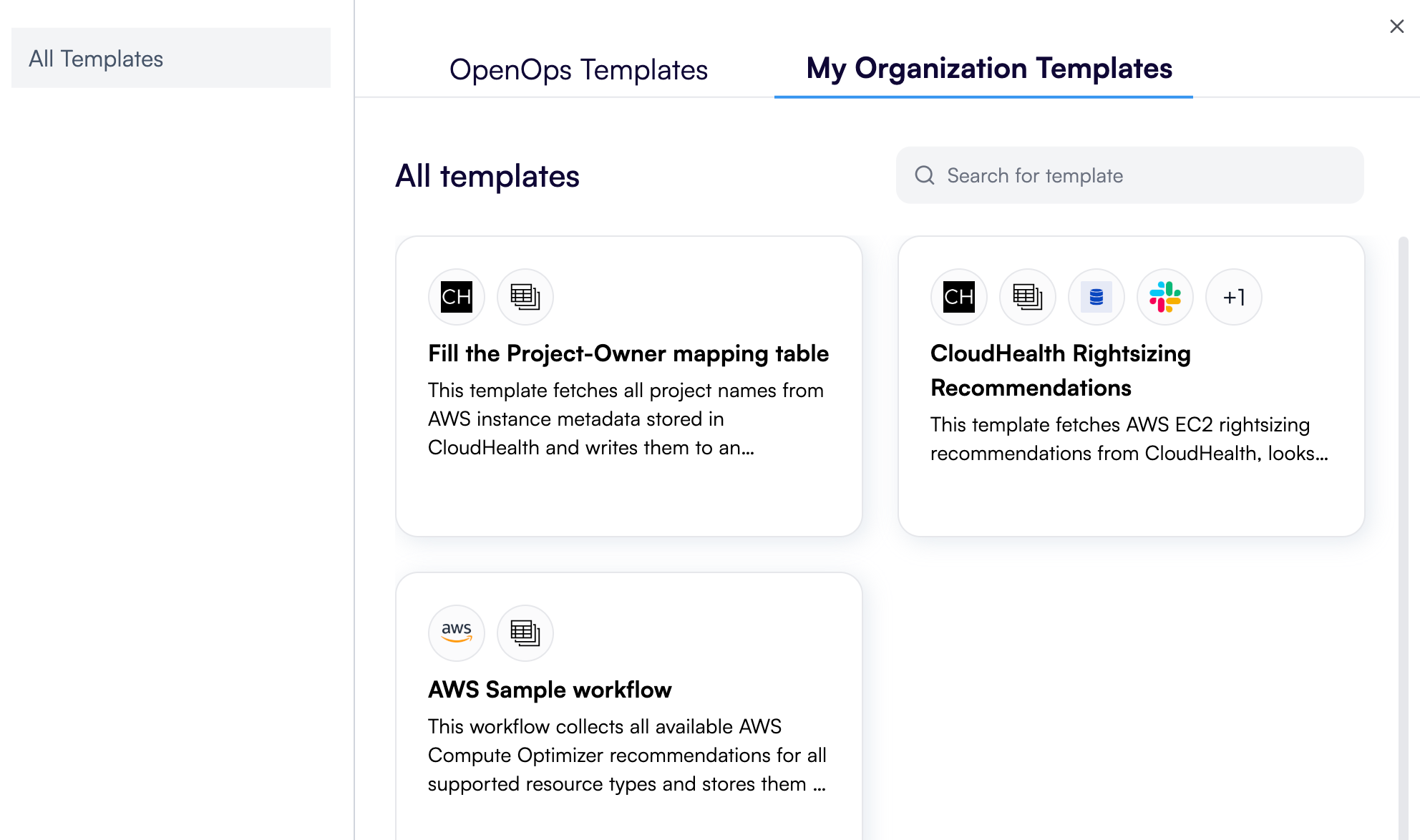 In larger organizations, this enables central FinOps teams to create templates that reflect corporate FinOps best practices and are aligned with organizational standards and policies. The central teams can publish them in the organization catalog, allowing business units to easily create workflows based on them.
For managed service providers (MSPs), the organization template catalog helps define a standard set of templates that can be used to create workflows for customers.
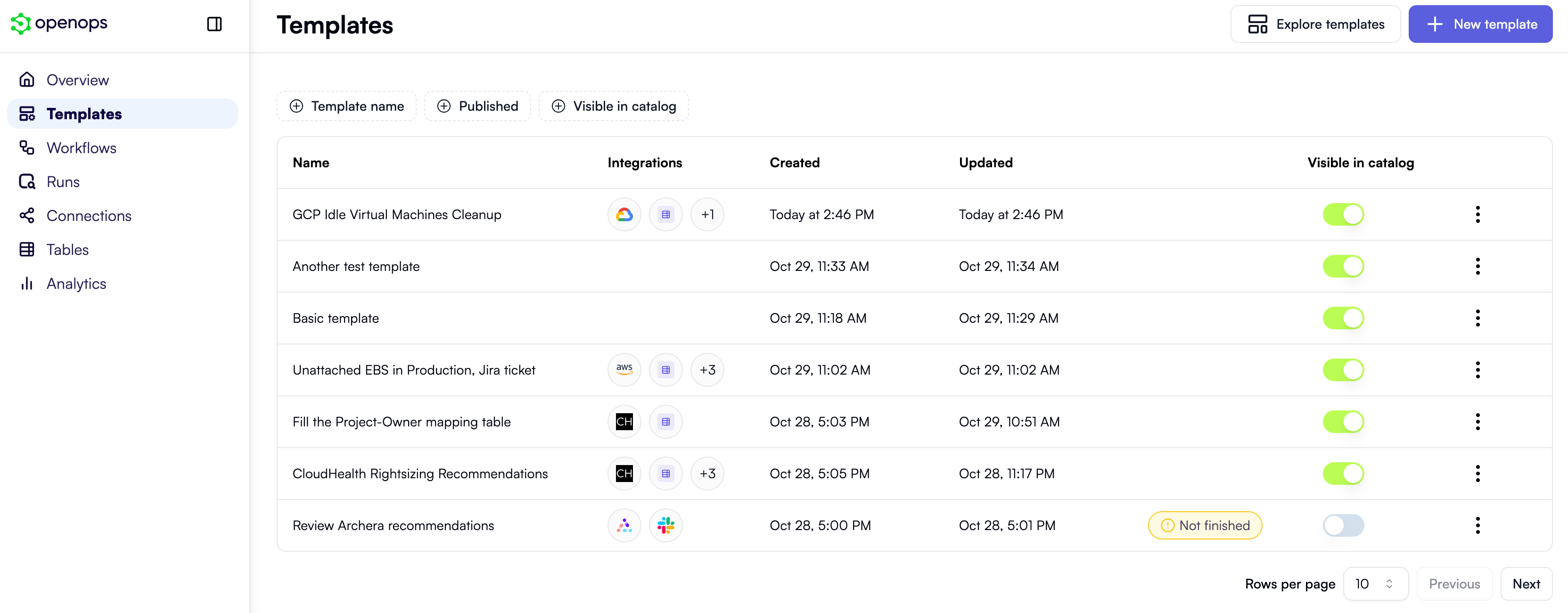
The Enterprise edition also includes a dedicated **Templates** view in the OpenOps main menu:
In larger organizations, this enables central FinOps teams to create templates that reflect corporate FinOps best practices and are aligned with organizational standards and policies. The central teams can publish them in the organization catalog, allowing business units to easily create workflows based on them.
For managed service providers (MSPs), the organization template catalog helps define a standard set of templates that can be used to create workflows for customers.
The Enterprise edition also includes a dedicated **Templates** view in the OpenOps main menu:
 ## Creating a template
There are two ways to create a template:
* By clicking **New template** in the top right of the **Templates** view. This opens the template editor, allowing you to create a template from scratch.
* **From an existing workflow**. Click the arrow next to the workflow name in the workflow editor to open a menu that contains a **Create template** command:
Clicking **Create template** duplicates the workflow as a template and opens it in the template editor.
## Editing a template
The template editor mostly behaves the same way as the [workflow editor](/workflow-management/building-workflows/): you can add and remove steps, edit step properties, and test individual steps or the entire template.
## Creating a template
There are two ways to create a template:
* By clicking **New template** in the top right of the **Templates** view. This opens the template editor, allowing you to create a template from scratch.
* **From an existing workflow**. Click the arrow next to the workflow name in the workflow editor to open a menu that contains a **Create template** command:
Clicking **Create template** duplicates the workflow as a template and opens it in the template editor.
## Editing a template
The template editor mostly behaves the same way as the [workflow editor](/workflow-management/building-workflows/): you can add and remove steps, edit step properties, and test individual steps or the entire template.
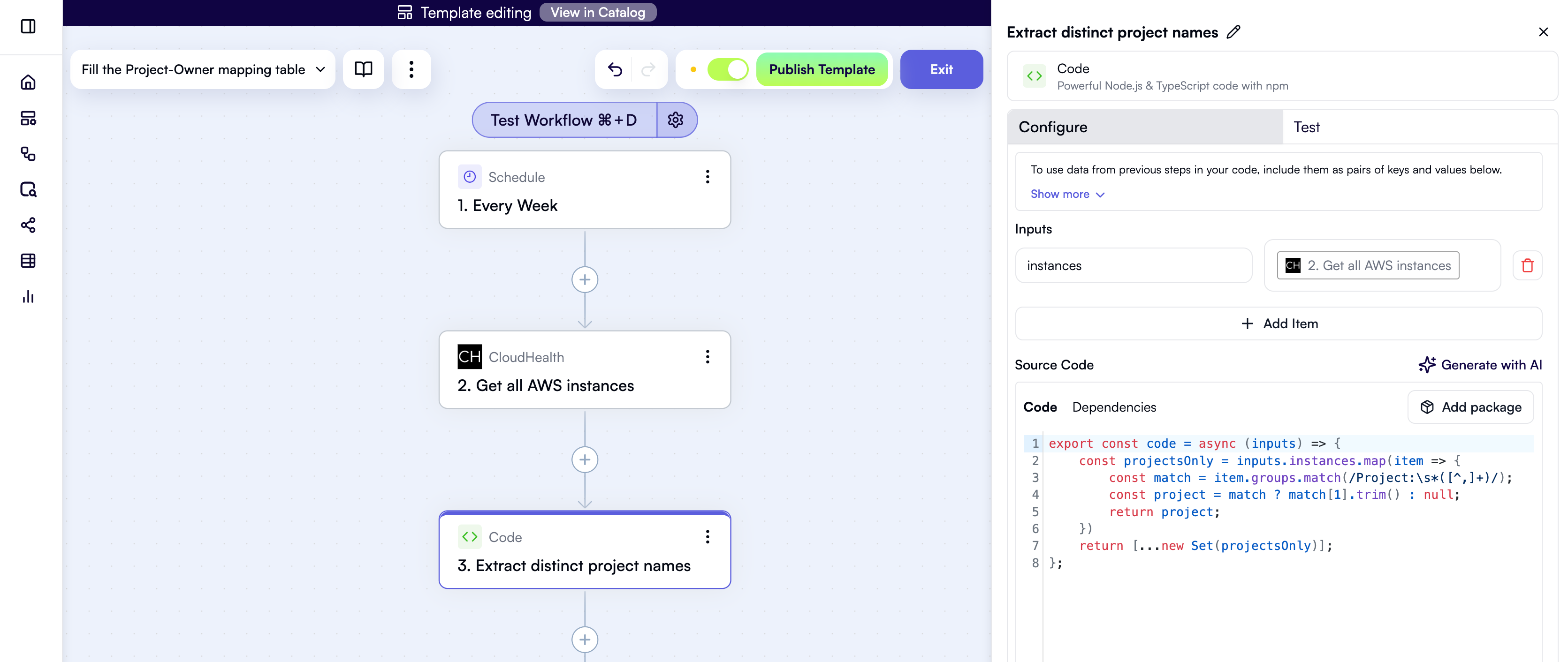 There are only a few differences from the workflow editor:
* At the top, there's a **Template editing** header that helps visually distinguish the template editor from the workflow editor.
* The header contains a **View in Catalog** action that opens the template entry as published in the organization template catalog.
* Text entered in the **Notes** pane of the template editor is used as the template summary and is displayed in the organization template catalog.
* You can't move templates between folders — unlike workflows, templates always reside in the root folder.
* You can't import or export templates.
## Listing a template in the organization catalog
While you're editing a template, its current draft appears in the **Templates** view.
When you click **Publish** in the template editor, the template becomes available in the organization template catalog.
## Delisting a template from the organization catalog
If you need to delist a template from the organization catalog while keeping it in the **Templates** view, do one of the following:
1. In the template's entry in the **Templates** view, toggle the switch in the **Visible in catalog** column.
2. In the template editor, toggle the switch next to the **Publish** button.
There are only a few differences from the workflow editor:
* At the top, there's a **Template editing** header that helps visually distinguish the template editor from the workflow editor.
* The header contains a **View in Catalog** action that opens the template entry as published in the organization template catalog.
* Text entered in the **Notes** pane of the template editor is used as the template summary and is displayed in the organization template catalog.
* You can't move templates between folders — unlike workflows, templates always reside in the root folder.
* You can't import or export templates.
## Listing a template in the organization catalog
While you're editing a template, its current draft appears in the **Templates** view.
When you click **Publish** in the template editor, the template becomes available in the organization template catalog.
## Delisting a template from the organization catalog
If you need to delist a template from the organization catalog while keeping it in the **Templates** view, do one of the following:
1. In the template's entry in the **Templates** view, toggle the switch in the **Visible in catalog** column.
2. In the template editor, toggle the switch next to the **Publish** button.